Turn a Slack thread into
a walkthrough.
Tag @Layerpath with screenshots or a recording.
Get a walkthrough in the thread, and change it by replying.
How it works in Slack.
Four steps, all in the thread.

 Emily Carter
 Sam Taylor
 Megan Brooks
 Layerpath
 Google Drive
 Google Calendar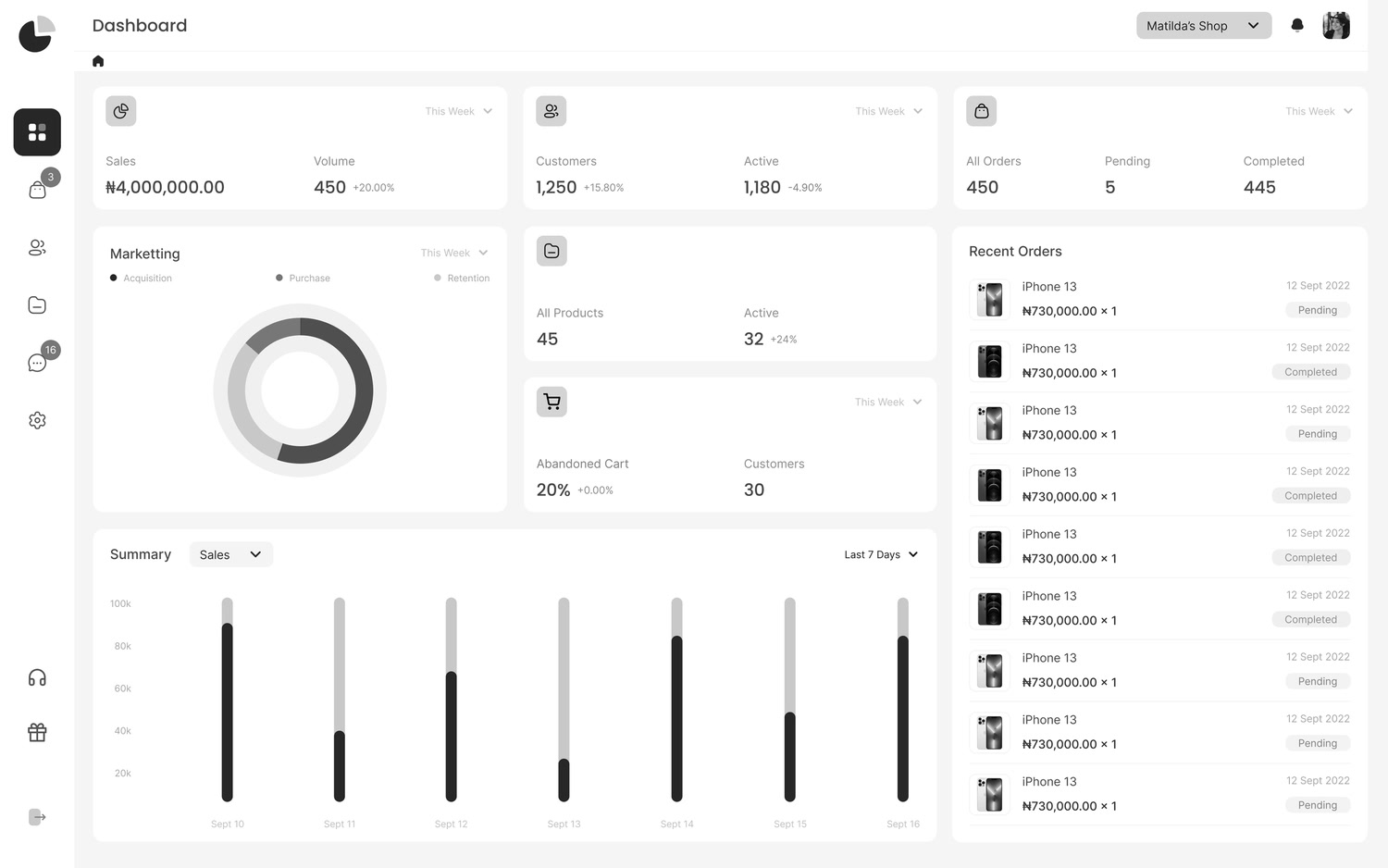
Just ask in the thread.
Agent takes it from there.
Reply in plain words, and the same walkthrough updates.
Ask it to blur
Reply “blur the customer data” and names,
faces and messages are hidden.

 Sure, on it.Done. All customer data is blurred.
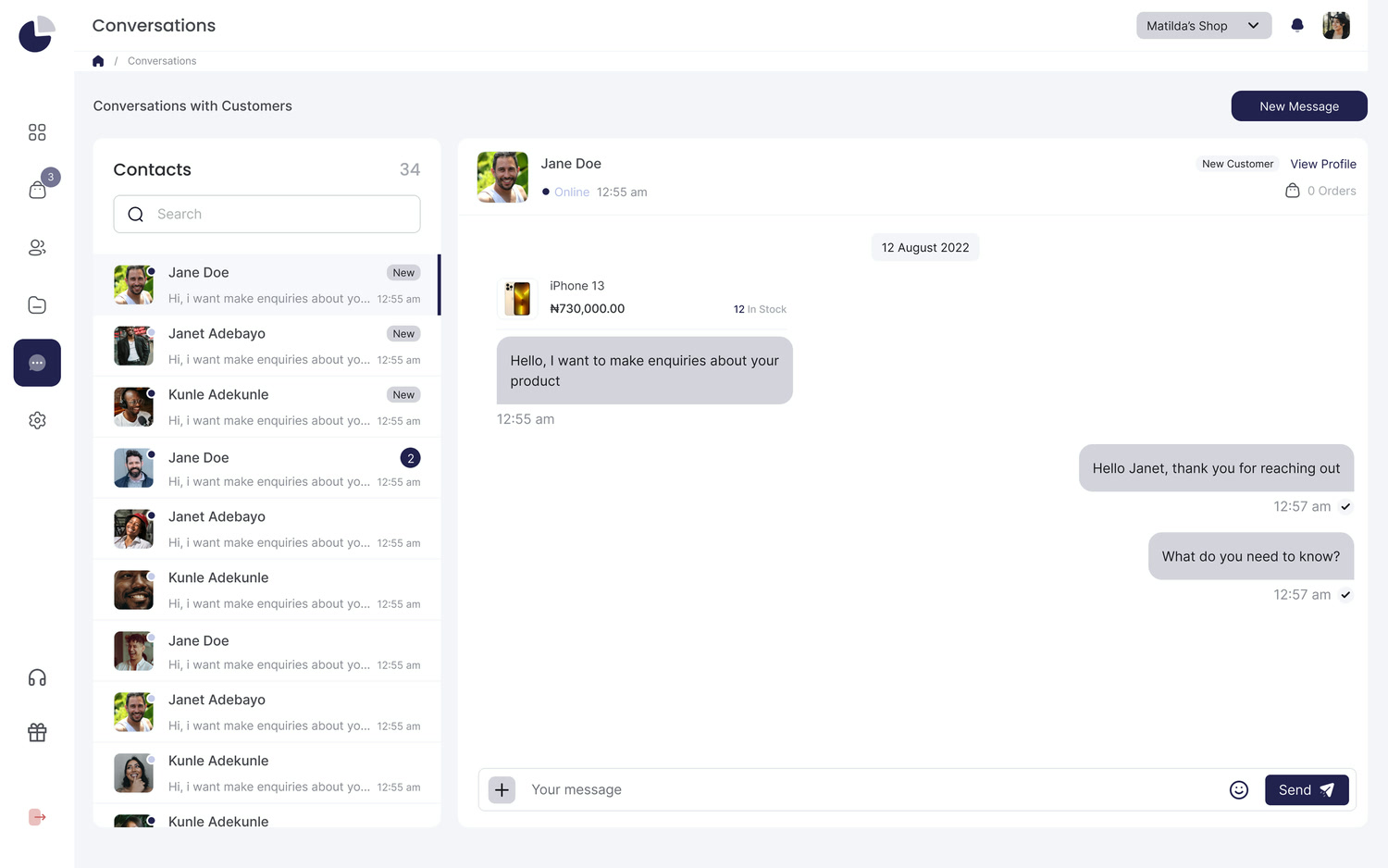
 Reply to a Customer Chat in Constructor X OpenEditShareReading the demo…
Ask for a voiceover
Reply “add a voiceover” and every step gets narration you can play.
Sure, adding a voiceover.Done. Every step has a voiceover now.Reply to a Customer Chat in Constructor X OpenEditShareReading the steps…Ask to translate
Reply “translate it to French” and steps,
callouts and voiceover change.
Sure, translating it now.Done. Here it is in French.Répondre à un chat client dans Constructor X OpenEditShareReading the steps…Ask for a video
Reply “turn it into a video” and get an MP4
you can download and share.
Sure, making the video.Done. Your video is ready.Reply to a Customer Chat in Constructor X.mp4DownloadShareReading the demo…One agent. Start in Slack,
keep going anywhere.
Pick up the same walkthrough in Layerpath, ChatGPT or Claude.



InviteJoin the first teams
Bring Agent
to your team.
Join the waitlist for Layerpath Agent. Tell us what your team keeps explaining. Already using Layerpath? You can join too.
Agent in Slack,
explained.
Everything you need to know about using Layerpath Agent in Slack.
What is Layerpath Agent for Slack?
Layerpath Agent turns screenshots, screen recordings and video links into interactive walkthroughs, right in Slack. Tag @Layerpath in a channel or thread, and the walkthrough comes back as a reply, in your brand.
How do I add Layerpath Agent to Slack?
Join the waitlist on this page. The team will contact you with access and help you add Agent to your workspace. Joining doesn’t install anything.
How do I create a walkthrough in Slack?
Tag @Layerpath in any channel or thread, say what you need, and attach screenshots or a screen recording. Agent writes the steps and callouts and posts the walkthrough in the thread.
Where does the walkthrough show up?
As a reply in the thread where you asked, with buttons to open it as an interactive tour, edit it, or share it.
Can I edit a walkthrough after Agent creates it?
Yes. Reply in the thread with what to change, like a shorter step or a new callout, and the same walkthrough updates. You can also open it in the Layerpath editor and change anything by hand.
What can I give Agent to make a walkthrough from?
Screenshots, a screen recording, or a Loom or YouTube link. Share them in the thread and Agent works from there.
Can Agent blur customer data in screenshots?
Yes. Ask Agent to blur the customer data and it hides names, faces and messages. Review the walkthrough before you share it.
Can Agent translate a walkthrough into other languages?
Yes. Ask for a language and the steps, callouts and voiceover are translated together. Voiceover is available in 28 languages.
Can I add a voiceover to a walkthrough?
Yes. Ask Agent to add a voiceover and every step gets narration you can play in the walkthrough.
Can I turn a walkthrough into a video?
Yes. Ask Agent to turn it into a video and you get an MP4 you can download and share anywhere.
How do I share a walkthrough with a customer?
Ask Agent for a link. Send that link to your customer, and they can open the walkthrough without a Layerpath account.
Does Layerpath Agent work outside Slack?
Yes. The same agent works in ChatGPT and Claude, and inside the Layerpath app. Your walkthroughs use your Brand memory for your logo, colors and tone, wherever you ask.