
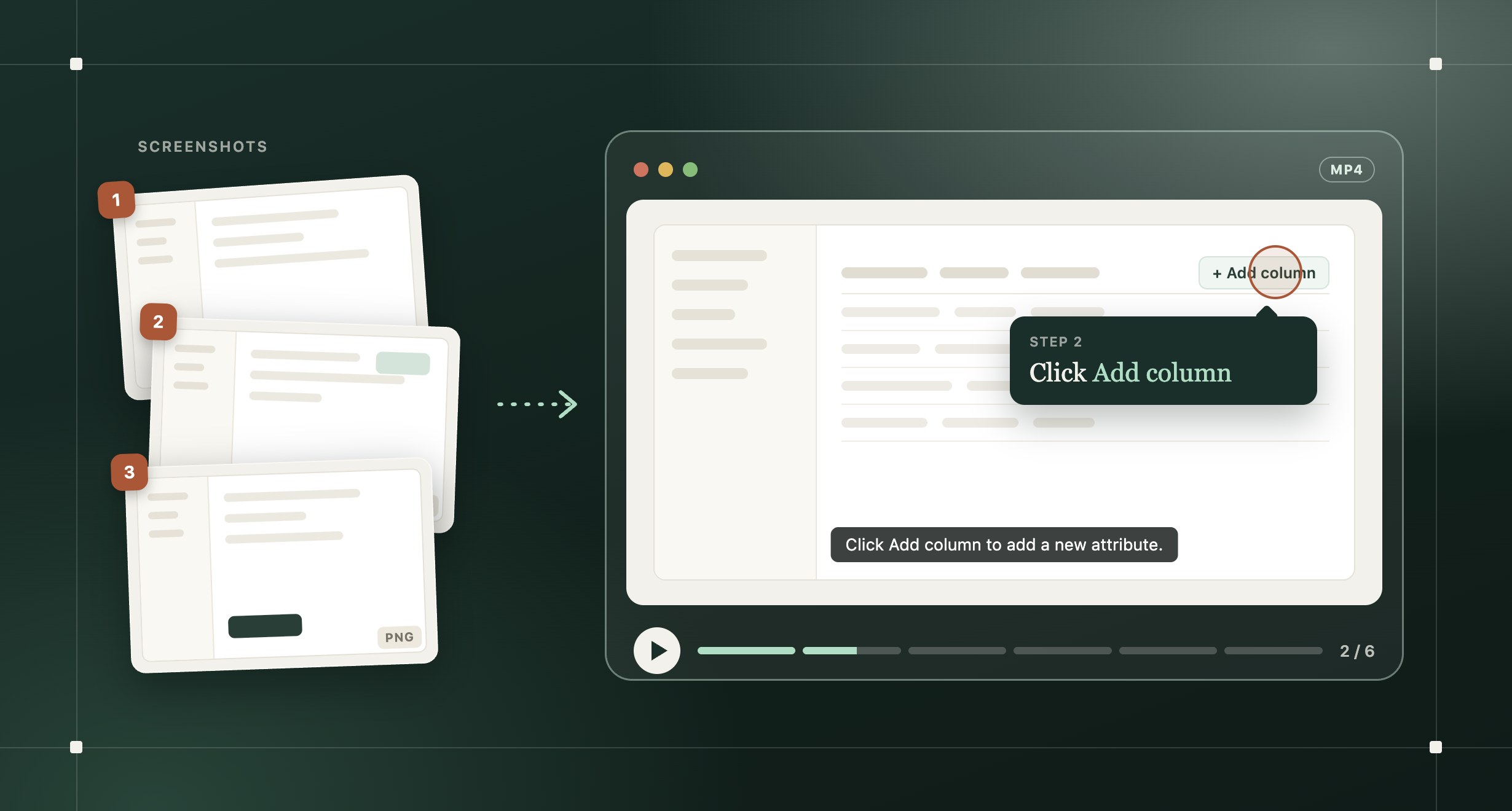
The short answer: Take one screenshot for each action in a single task and put them in order. Write a one-line instruction for each, mark what to click, and add narration and captions. Export an MP4 and keep the editable project, so a changed screen means updating one step and exporting again, not making a new video.
Why build a training video from screenshots?
A live screen recording captures everything: the wandering mouse, the typo, the page that loads slowly. With screenshots, you pick the screens that matter and explain them afterward, so one slip doesn't mean starting over.
They're also easier to update. When one screen changes, you replace one image, not the whole recording.
Should you use screenshots or a screen recording?
| If the task | Use |
|---|---|
| Is a series of clicks, menus, and form fields | Screenshots |
| Changes often but keeps the same order | Screenshots |
| Depends on movement or timing, like drag and drop or an animation | A screen recording |
| Is a quick answer you won't need to update | A screen recording |
How do you make a training video from screenshots?
- Pick one task. Name the video for what the viewer will do, like "Create a custom attribute," not "CRM basics."
- Capture every screen in order. Take one full-resolution screenshot per action, including open menus, dialogs, and the final confirmation, at the same window size.
- Clean them up. Use sample data, blur names and email addresses, and crop to the part of the screen that matters.
- Write one instruction per screenshot. Start with a verb and use the exact label on screen: "Click Add column."
- Point to the target. Mark the button or field the same way on every screenshot, and zoom in where the text is small.
- Add narration and captions. Record your voice or use AI voiceover, with one short script per screenshot and captions for people watching on mute.
- Export and test. Export an MP4, ask someone new to follow it in the live product, and keep the editable project for the next update.
What goes into each step?
Every screenshot carries one action. Written out, one step looks like this:
| Part | Example |
|---|---|
| Screenshot | The Companies table, with Add column in view |
| Marker | A hotspot on Add column |
| Instruction | Click Add column. |
| Narration | "Click Add column to add a new attribute to your company records." |
Write the instruction so it still makes sense without the image. Open the video on the first step, not a title card: people came for the task.
Where Layerpath fits
Layerpath turns your screenshots into one project that people can watch as an exported video, click through as a walkthrough, or read as a step-by-step guide.
- Create. Upload PNG or JPEG screenshots with Create with Agent and say what viewers should learn. Each screenshot becomes a step, and Layerpath Agent writes the callouts. On paid plans, it can also add AI voiceover in 34 languages.
- Check. In the editor, fix a callout, move a hotspot, blur or crop part of a step, or record your own voiceover.
- Export. In Share > Export, make an MP4 with auto zoom and a hotspot or cursor on each step. Under Advanced settings, turn on closed captions (they need a voiceover) and leave out the intro and outro.
In Slack or ChatGPT, you can also send Agent screenshots, a recording, or a Loom or YouTube link and ask for a walkthrough.
A video export is a file. When a screen changes, update that step and export the video again. Agent can make mistakes, so review the walkthrough before you share it.
Interactive Layerpath walkthrough: How to create a new attribute in Attio. An Attio task as a Layerpath walkthrough. The same project reads as a step-by-step guide and exports as an MP4 video.
- Click Add column to add a new attribute
- Select Create new attribute
- Pick an attribute type. Here we'll use Text.
- Give your attribute a name
- Add a short description so your team knows what it's for
- Click Create attribute to add it to your table
Frequently asked questions
Can you make a training video from screenshots without recording your voice?
Yes. Write a short script for each screenshot and generate an AI voiceover, or skip narration and let the on-screen instructions carry the video.
How many screenshots does a training video need?
Enough to show every action and every screen change. Include open menus, dialogs, and confirmation messages, so viewers can follow the task without guessing.
What's the easiest way to create software tutorials for staff?
Pick one task people ask about often, capture its screens once, and keep each tutorial to that one task. A tool that writes the steps from your screenshots or recording saves writing them by hand. Layerpath turns the same capture into a training video, a click-through walkthrough, and a step-by-step guide.
How do you update a screenshot video when the software changes?
Replace the screenshots for the steps that changed, fix their text and narration, and export again. If the order of the task changed, capture it again. See how to update screenshots, guides, and videos after a release.