
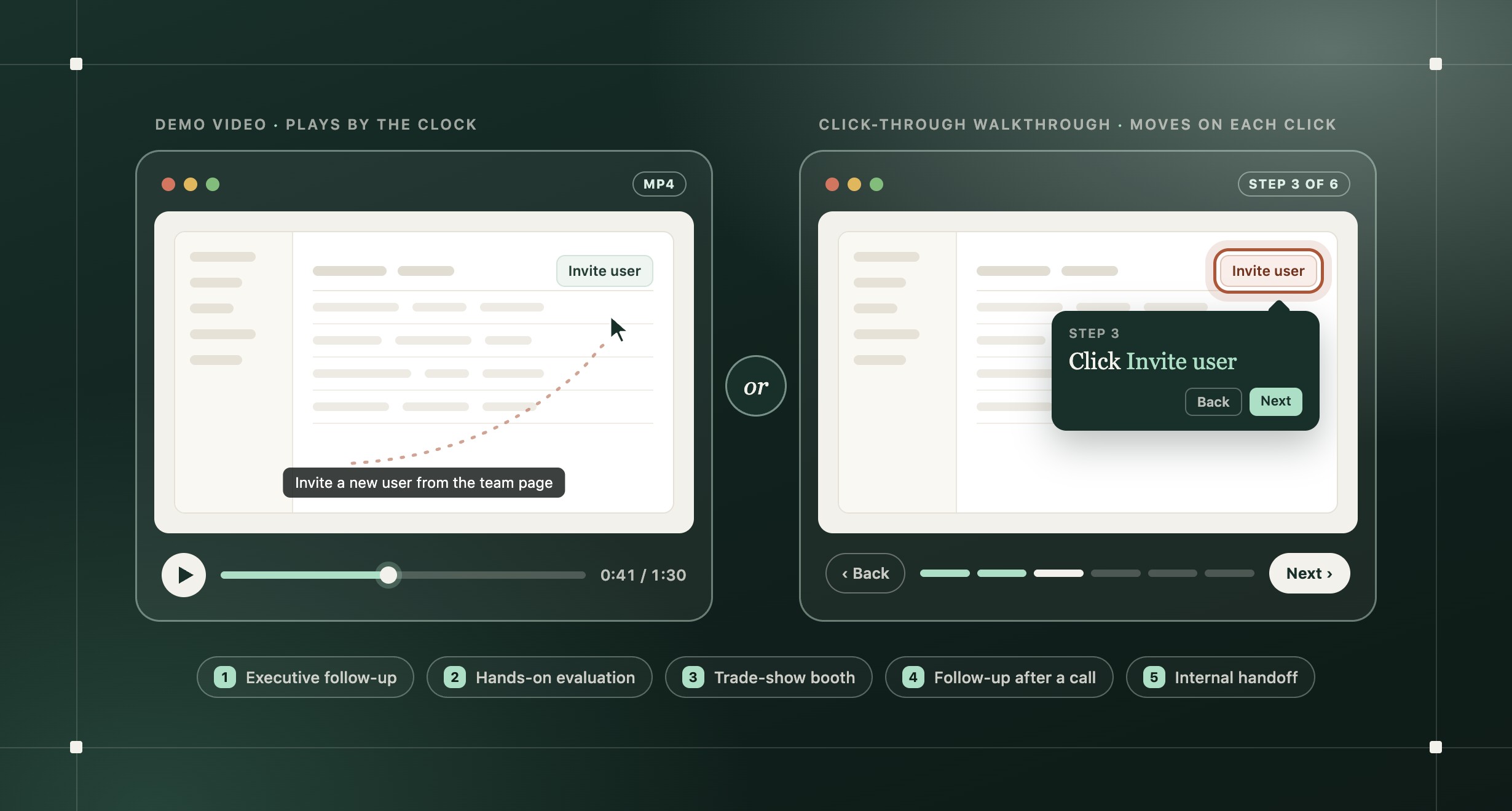
The short answer: Choose by who's watching and who controls the pace. Give a skimming executive a one-page guide instead of a video. At a booth, use a walkthrough the presenter advances one click at a time. After a call, send a short video in the rep's own voice. And if your reps only send videos, start with video, because a demo nobody sends doesn't help anyone.
Why one demo doesn't fit every moment
Product marketing makes one demo. Then a rep sends it to an executive, pre-sales reworks it for tomorrow's call, someone plays it at a booth, and an engineer watches it to learn a customer's use case. Same screens, different viewers, and a different person deciding when to move on. So choose by the moment, not only the funnel stage:
| Moment | Who's watching | Who sets the pace | Best format |
|---|---|---|---|
| Executive follow-up | A senior leader who skims | The reader | One-page guide with screenshots, plus a link to a short video |
| Hands-on evaluation | The people who'll use the product every day | The viewer | Videos split by task, or a click-through walkthrough; a trial or sandbox when they need to test it for real |
| Trade-show booth | Walk-up visitors | The presenter | Click-through walkthrough the presenter advances, plus a short video loop for quiet times |
| Follow-up after a call | The prospect's team, later in the deal | The viewer | Short video on the use case they raised, in the rep's own voice |
| Internal handoff | Your product, engineering, or support team | The viewer | Quick screen recording, no polish; make a separate customer version if you reuse it |
Should you push interactive demos on a sales team that only sends videos?
Not as a first step. Reps already know how to record and send a video, and an interactive demo (a click-through walkthrough of your product's screens) asks them to learn a new habit. Try a walkthrough in a few real follow-ups before you roll it out. If reps don't send it, it isn't solving the problem.
Start with video, and add a walkthrough where stepping through screens beats playing them: when someone needs to stop at each screen, go back a step, or move on only when they're ready. Video also travels. Link it in an email, post it on LinkedIn, drop it into a slide, or loop it on a booth screen.
What if the executive won't watch even a short video?
If the reader is a senior leader who skims follow-ups between meetings, a few minutes of video is a big ask. Send a page instead:
- The problem they raised, in one line.
- Four to six screenshots that show how it's solved, with one sentence each.
- The next step.
Add a link to a short video for anyone who prefers to watch. A step-by-step guide exported as a PDF works here: it forwards cleanly and opens on a phone.
Not every senior buyer skims. Some want to watch, especially to see their own use case solved. If you're not sure, ask at the end of the call: "Would a short video or a one-page summary be easier to share with your team?"
Who needs the detailed version?
The people on the ground, who'll run the workflow every day. They want every screen and every field, so split the detail into one video or walkthrough per task and name each for the job, like "Invite a new user," not "Platform overview." If they need to try it with their own data, nothing replaces a trial or sandbox.
At a booth, should you pause a video or click through a demo?
A presenter at a booth needs to stop for questions without losing their place. With a continuous video, that means pausing and scrubbing back. With a click-through walkthrough, each screen holds while they talk and moves on when they click, so they explain at the visitor's pace.
- Someone presenting. Use a walkthrough that advances on click.
- Nobody presenting. Loop a short video of the product doing its main job.
- Noise. Booths are loud, so put the explanation on screen as callouts or captions. Add voiceover only where visitors can hear it.
- Wi-Fi. Keep a downloaded video in case the venue connection drops.
What should you send after a demo call?
Later in a deal, conversations get personal, and a familiar voice matters. Send a short video in the rep's own voice that shows the use case the prospect raised, not your standard overview.
When it has to go out the same day, start with the closest existing recording:
- Cut it down to the part that covers their use case.
- Replace the opening with one line about their problem.
- Re-record the narration in the rep's own voice.
Before you send it, check three things about the link: who can open it, whether each company can get its own link, and whether the analytics show individual viewers or only total views. A separate link alone doesn't make a video private. Exporting a file and uploading it to a video host for a share page and view counts works, but it's one more step every time the video changes.
Your own voice or an AI voice?
| Use your own voice | Use an AI voice |
|---|---|
| Follow-ups after a call and later-stage conversations | Booth loops and event screens, where no one person needs to be the voice |
| Account updates, where the relationship is the point | Videos you'll edit often, where one changed line shouldn't need a new recording session |
| Internal handoffs | Translations |
Whichever voice you use, play the edited part back after you change the narration, and check the timing around it.
Why does every small edit take so long?
In some AI video tools, one changed word of narration or one new caption means rendering the whole video again. Before you choose a tool, test the edit you'll make most often:
- Change one sentence of narration. Does only that part change?
- Replace one screen. Do you have to record the whole flow again?
- Count what one round of feedback costs in credits and waiting time, and check that the parts you didn't touch stayed the same.
- Have two people edit the same project. Check that both sets of changes survive.
Then batch feedback. Collect every change from your reviewers before you export again.
Should you build a demo library if your UI keeps changing?
Build the cheap parts now and the polished parts later. Scripts and task outlines survive a redesign. Polished recordings don't.
| Your product | What to do |
|---|---|
| Main screens change every few months | Keep scripts and task outlines; keep each recording short and to one task, and expect to record it again |
| Each customer's setup looks different | Keep one shared explanation and make tailored examples per account when needed |
| The core layout has held for a couple of releases | Build a reusable library with an owner and a last-checked date, and edit only the steps that change |
When you get there, how to update screenshots, guides, and videos after a release covers when to edit and when to record again.
Where Layerpath fits
Layerpath turns screenshots, a recording, or a Loom link into a click-through walkthrough, a step-by-step guide, and an exported video. You can record your own voiceover or use AI voiceover in 34 languages, and edit one step or its narration without redoing the rest. Export the video again after you edit.
The exported video is built from those steps, with zoom and a cursor or hotspot on each one. It isn't a continuous screen recording. If you need a timeline editor to trim and join footage, a video editor is the better fit.
Frequently asked questions
Is an interactive demo better than a demo video?
Neither is better everywhere. Use an interactive demo when someone needs to stop at each screen or go back a step, like a self-paced evaluation or a booth presentation. Use video when it has to travel, or when your sales team won't send anything else.
Can't viewers pause a demo video instead?
Yes, and for many viewers that's enough. A walkthrough helps when someone needs to move by step rather than by timestamp: to find one screen, go back one action, or present while answering questions.
How long should a demo video be?
As short as the moment allows: one task per video, about a minute for executives, and only the use case they raised after a call. Cut whole topics rather than speeding up the narration.
How often should you re-record a demo video?
When the screens it shows or the order of the task changes. If the video is built from editable steps, replace the changed steps and export again. If it's a screen recording, keeping each video to one task makes recording it again cheap.