
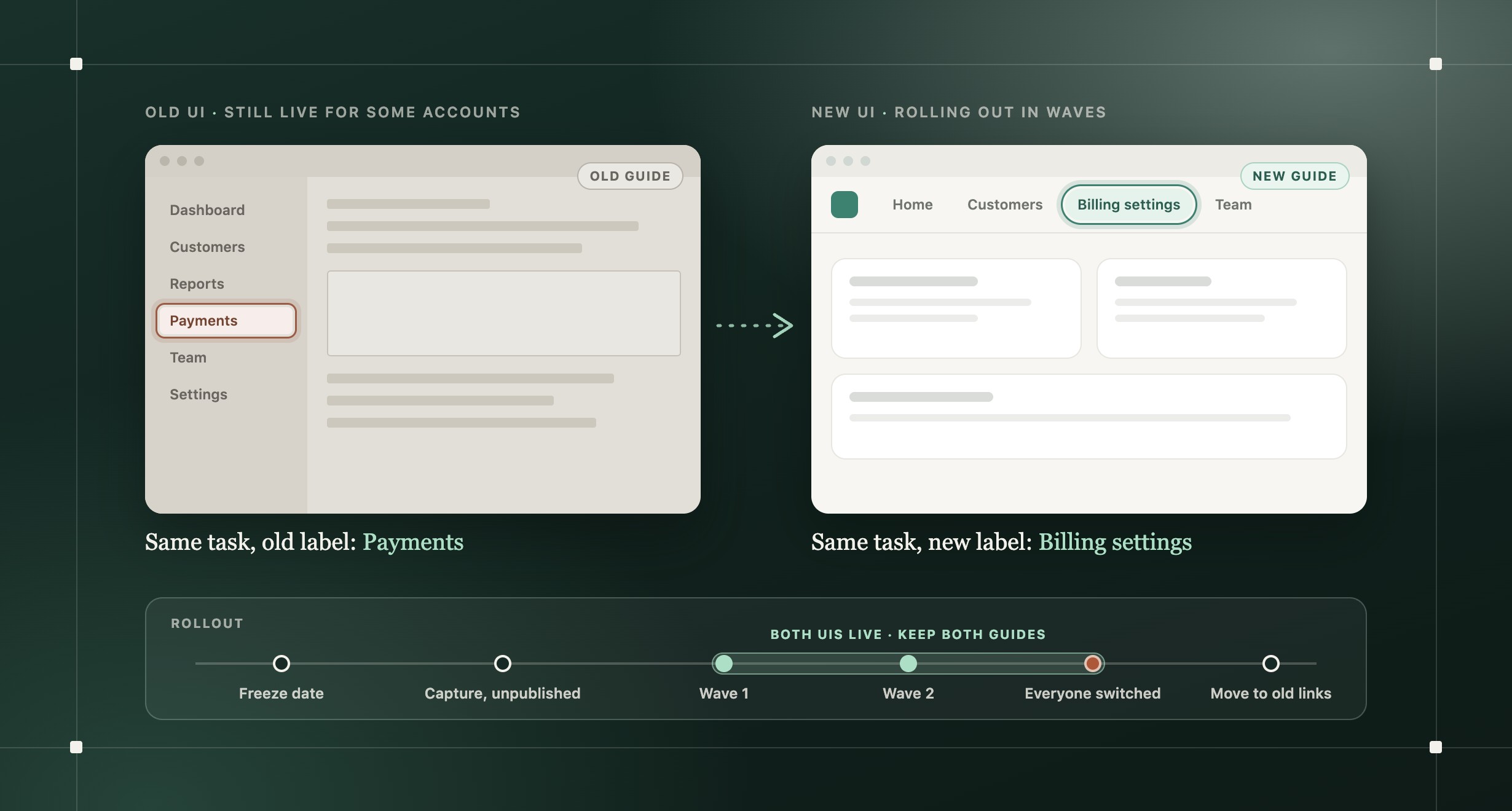
The short answer: Plan help content around the rollout, not the announcement, and don't redo everything. Ask product for the freeze date (when the new screens stop changing) and the rollout plan. Sort your library by what the redesign does to each task. After the freeze, rebuild the changed tasks from a test account and keep them unpublished. Publish each new version when its readers get the new UI, keep both versions while both UIs are live, and move the new ones to the old links once everyone has switched.
Why is a UI redesign harder on your help center than a normal release?
A UI redesign, or UI refresh, changes the navigation, layout, and look of many screens at once. A normal release changes a few screens, and a routine like the one in how to update help content after a release catches them. After a redesign, every screenshot and video looks old on the same day, including the ones whose steps still work.
Three more things make it harder:
- It often ships in stages. A phased rollout can reach some accounts first, or sit behind a feature flag or an opt-in toggle users can turn off. For a while, both versions are live.
- Video is the hardest to fix. A wrong screenshot is one image to replace. A video that shows a menu that's gone needs a new segment, new narration, or a new recording.
- The team doesn't grow with the library. Most support and training teams aren't big enough to redo everything at once on top of their usual work.
What should you do before the redesign ships?
- Get into the launch plan early. Name one person who owns help content for the redesign. Ask product for the freeze date, a list of renamed labels and moved menus (including changes that seem too small to mention), and the rollout plan: everyone at once, a share of accounts, or a toggle users can flip. Ask for a staging or test account on the new UI with sample data, too.
- Sort the library. Use the table below. Old colors make a guide look dated; a missing button makes it wrong. Content with a new look and the same steps is only dated, so it can wait. Check the first step of each task, though: a new menu can change how people reach a screen even when the rest of the task stays the same.
- Keep making content for screens the redesign won't touch. Don't freeze the whole library.
- Save the words separately. Words survive a redesign better than pictures. Keep task names, step text, and scripts outside the video or screenshot, so you can reuse them on new captures.
- Rebuild after the freeze, not before. Screens from an early build often change again before launch. Capture the new flow from the test account, and keep the new versions unpublished.
- Ask whether someone already recorded the new flow, like product or sales for an internal demo. Check it against the final screens and for private data first.
| What the redesign does to a task | Before rollout | While both UIs are live | Once everyone has the new UI |
|---|---|---|---|
| Nothing: screens the redesign doesn't reach | Keep using and making content | No change | Check it in the next sweep |
| New look, same labels and steps | Check that the first step still gets people there | Keep the current guide | Recapture the most-viewed screenshots first |
| Labels renamed or menus moved | Fix the words, then recapture after the freeze | Keep both versions, labeled | Move the new version to the old link |
| Steps added, removed, or reordered | Capture the task again from the test account after the freeze | Keep both versions, labeled | Move the new version to the old link and retire the old one |
| Feature removed or merged | Decide where its readers should go | Keep the old guide for accounts that still have the feature | Retire it and redirect the link |
Should you pause making training videos until the redesign ships?
Pause video only for screens that are about to change. A full pause can last as long as the rollout, and the gap fills with quick screen recordings and answers that live in one person's head.
- For areas the redesign won't touch, keep making walkthroughs and videos as usual.
- For areas that will change, use written steps with screenshots if people need help now. They're cheaper to redo than a narrated video.
- For new videos after launch, keep one task per video. The next change then breaks a few short videos, not one long recording.
How do you handle help docs while the old and new UI are both live?
Update help content when its readers get the new interface, not when the redesign first ships. During a phased rollout, the old guide is still right for everyone who hasn't switched.
- Keep both versions. Label each guide with the version it covers, and link the two to each other.
- Send readers to the version they use. Tell support which accounts have the new UI, so saved replies point to the right guide.
- Consolidate once everyone has the new UI and can't switch back. Move the new version to the old link, so saved replies, onboarding emails, and help-center links keep working. If a walkthrough or video is embedded, swap the embed inside the existing article instead of publishing a new article. Then retire the old-UI version.
- Watch for the tell: a ticket that says "the guide shows a button I don't have." Readers usually notice before the team does.
What should a small team fix first after launch?
- First wave: setup and getting-started content, the most-used tasks, and the guides your saved replies link to, for the accounts that have the new UI.
- Next few weeks: the rest of the tasks whose labels or steps changed, in order of views and tickets.
- Next sweep: "new look, same steps" screenshots. Fix wrong before dated.
- Retire what's no longer needed: guides for tasks that no longer exist, or that a current guide replaces. Check low-traffic articles for rare but important tasks before you remove them.
Once the redesign settles, go back to a routine for each release, so the next change doesn't pile up. The release update post has the screen inventory and an edit-or-re-record table.
Redesign checklist for help content
| When | Do this |
|---|---|
| As soon as the redesign is planned | Name an owner; ask for the freeze date, label and menu changes, rollout plan, and a staging or test account |
| Before the freeze | Sort the library, keep making content for unchanged screens, and save the words separately |
| After the freeze | Capture changed tasks from the test account and keep them unpublished |
| Each rollout wave | Check the live UI, publish the versions those readers need, and update saved replies |
| Once everyone has the new UI | Move new versions to the old links, retire old-UI guides, and redirect removed features |
| Next sweep | Recapture "new look" screenshots and go back to the per-release routine |
Where Layerpath fits
Layerpath turns screenshots, a recording, or a Loom link into one project that people can click through as a walkthrough, read as a step-by-step guide, or watch as a video. The walkthrough and the guide share the same steps, so a redesign means fixing each task once, not in three tools.
- New look, same steps: in the editor, add a step from the new screenshot, place its hotspot, reuse the old step's callout text, and hide the old step.
- A renamed label: ask Layerpath Agent to change it in every step in one pass, like "Change Payments to Billing settings." Then check that each screenshot shows the new label, and recapture the ones that don't. See Edit with Agent.
- A changed flow: capture the task again from your test account. Record your screen, upload screenshots, or import a Loom link (up to 10 minutes) of the new flow that someone already recorded.
- Two versions at once: duplicate the project, check that Publish project is off on the copy, and rebuild it on the new screens. The copy gets its own link and embed code, so link the two versions to each other while both UIs are live. If everyone switches on the same day, edit the original on launch day instead, so its link and embed code stay the same.
Video exports and guide PDFs are files, so export them again after you edit. Layerpath doesn't spot changes in your software for you. Your team still decides what changed, and Agent can make mistakes, so review each walkthrough before you share it.
Frequently asked questions
Should you update screenshots before or after a redesign launches?
Capture them before launch, from a staging or test account, once the screens stop changing. Publish them when each guide's readers get the new UI, after checking the steps in the live product. No freeze date? Capture after launch, starting with the most-viewed tasks.
Do you need new screenshots if only the colors changed?
Not right away. If the labels and steps are the same, the old screenshots are still correct, only dated. Recapture the most-viewed ones first, and the rest in your next sweep.
How do you keep training current for software you don't build?
Expect little warning and no freeze date. Follow the vendor's release notes, and join its early-access program if it has one, so you see big changes before your users do. Ask the people who use the tool every day to flag what moved, and note on each guide when you last checked it.
Can you update a walkthrough without changing the embed code?
Yes, if you edit the walkthrough or video that's already embedded instead of making a new one. A new walkthrough or upload gets a new link, so every article that uses it needs new embed code. Some video hosts let you replace the file behind an existing link.
How long should you keep old help articles after a redesign?
Until every account has the new UI and users can't switch back. Then move the new versions to the old links, and redirect the retired ones.